Showing posts with label Sharepoint 2013. Show all posts
Showing posts with label Sharepoint 2013. Show all posts
Tuesday, September 27, 2016
Integrate MS Dynamics CRM 2015 With Microsoft SharePoint 2013
Provide a complete step by step process on how to integrate Microsoft Dynamics CRM with Microsoft SharePoint using the out-of-the-box configuration tools provided by Microsoft for both platforms.
Step 1:Firstly, you'll want to create a new collection in SharePoint to keep your files separate.
Step 2: We need to setup SharePoint for this List Component. For that download the List component for the correct version of CRM and upload it into the Solutions Gallery of SharePoint.
Step 3: Activate the solution and be sure that the Status is activated.
You may get errors in activation. To rectify, make sure the Microsoft Dynamics CRM Sandbox Processing Service and Microsoft SharePoint foundation Sandboxed Code Service services are started.
Step 4: Then Click on CRM -> Settings -> Document Management as shown below.
Step 5: You will settings available under the document management settings.
Step 6: Click on Document Management Settings, enter the SharePoint site URL where you want to save documents. Click Next. In case you don't have the Microsoft Dynamics CRM List Component it will give you the following warning.
Step 7: Document management can be enabled for those entities in Microsoft Dynamics CRM that can be customized. By default, document management is enabled only for the following entities in a new installation of CRM.
Account
KbArticle
Lead
Opportunity
Product
Quote
SalesLiterature
You can enable document management for an entity, as shown below.
Step 8: Once document management is enabled for an entity, you will see the option for documents as shown below.
Step 9: You can add document location for this entity assuming the location is created and the appropriate permissions are set on SharePoint.
Step 10: And if everything goes right, you will see the familiar (at least to me) interface of SharePoint from within Dynamics CRM as shown below. You can start uploading documents and use document management functionality.
Step 11: In case you do not want to manage the folder structure on your own and let CRM make it for you, if the CRM List Component is installed correctly, you get an option for creating a folder structure based on the entities.
CRM users and non-CRM users can work together to achieve common business goals through improved communication by this integration.

Wednesday, January 6, 2016
Error occurred in deployment step 'Install app for SharePoint': Failed to extract the cab file in the solution.
This error, Failed to extract the cab file in the solution , will be thrown while deploying a WSP in SharePoint , if that WSP contains any files with special characters that are not accepted by SharePoint in its file name. This applies to sand box solution as well. The only resolution would be to rename the file without any non acceptable special characters.
Kindly check any file with special characters,If there remove special characters,then deploye....
Enj...
Kindly check any file with special characters,If there remove special characters,then deploye....
Enj...
Wednesday, December 23, 2015
Error occurred in deployment step 'Install app for SharePoint': The requested service, AppMng.svc' could not be activated. See the server's diagnostic trace logs for more information
The cause for getting the above error is free memory is less to start this service. So you need to free some memory.
“Memory gates checking failed because the free memory is less than 5% of total memory. As a result, the service will not be available for incoming requests. To resolve this, either reduce the load on the machine or adjust the value of minFreeMemoryPercentageToActivateService on the serviceHostingEnvironment config element.”
You can resolve this issue by restarting the SPSearchHostController service in services.msc console as this consumes lot of memory, which will free some memory for you. You can also try to reboot your server or close unnecessary applications to free some memory.
more :http://social.technet.microsoft.com/wiki/contents/articles/25793.step-by-step-guide-to-configure-environment-for-creating-your-first-sharepoint-hosted-app.aspx
Error occurred in deployment step 'Uninstall app for SharePoint': The System Account cannot perform this action
- Create a new account.
- Add this account to local admin.
- Then add the account to farm admin group. Open sharepoint central administration, go to Security. From there select Manage the farm administrators group.
- Now open visual studio into different user ( Shift + Right Click, and open with different user ). and put the user which you have created now.
Thursday, December 17, 2015
CONFIGURATION FAILED – FAILED TO CREATE SAMPLE DATA-SHAREPOINT 2013
I am installing SharePoint 2013 for the first time – it’s a standalone installation on a clean Windows 2012 server. SharePoint appears to have installed without incident but the Configuration Wizard has failed with the following message: “The SDDL string contains an invalid sid or a sid that cannot be translated.”
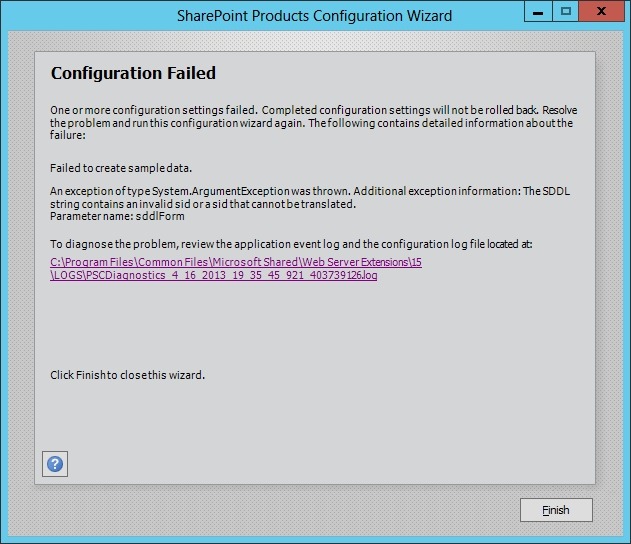
It appears to have failed to create the sample database. After rebuilding the server to try again, and spending a bit of time searching for a solution, it would appear that this is a common problem and there isn’t one solution for all. For me, it only took a few simple steps to fix by sharing a folder and setting some permissions:
1. Once the Configuration Wizard has failed browse to C:\Program Files\Microsoft Office Servers\15.0\Data\Office Server
2. Right-click on the Analytics_GUID folder and choose Properties
3. On the Sharing tab click Advanced Sharing
4. Tick the box to share the folder (don’t change the share name) and click the Permissions button
5. Click Add, enter WSS_ADMIN_WPG and click OK. Grant the group Full Control and click OK
6. Click Close
I ran the Configuration Wizard again and it completed successfully
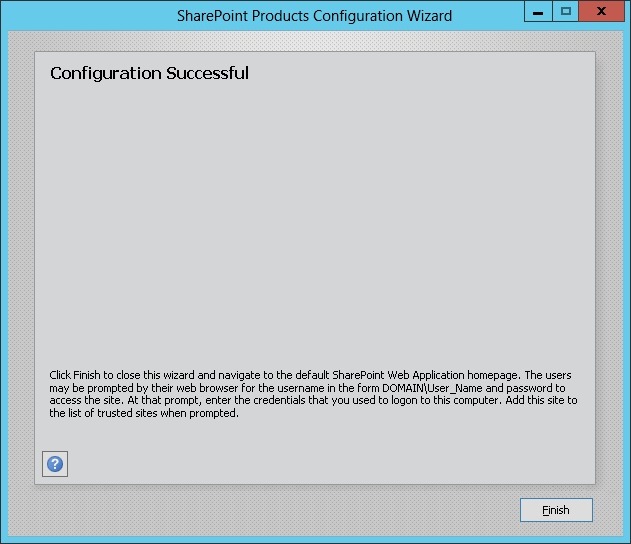
eNJ....
Subscribe to:
Posts (Atom)